
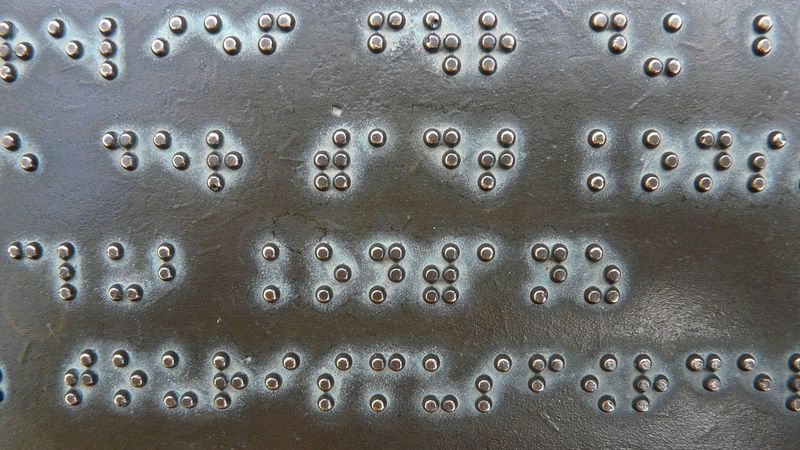
Tangerang, Kartunet - Microsoft Word is one of the most popular word processing applications. Currently, the latest version released by Microsoft is Word 2016. It can be said that Word is an essential application to master for many administrative tasks, such as creating letters, notes, papers, tables, diagrams, etc. Generally, Microsoft Word's interface looks like a blank sheet of paper ready for anything to be written on it. However, there are other parts whose layout needs to be understood by visually impaired users, as all navigation is done using a keyboard and screen reader.

Activating Word 2016
Generally, Word 2016 doesn't have too many changes for visually impaired users compared to previous versions. There's only a slight difference when starting work in Word 2016. For more details, follow these steps:
- Activate the Start Menu, and in the search box, type “word”; Word 2016 will appear, then press Enter.
- Wait for the loading process, and a window will appear that is different from previous versions, which directly opened a blank document.
- Upon initial entry, the cursor is in the New Grouping, which provides template options that can be used to create documents in Word 2016. A template is an example of a common document pattern, such as a letter template, envelope, report, or resume.
- Immediately press Enter when the cursor is in position to select blank document or an empty document.
- However, if you press Tab in that dialog box, you will be in the recent documents grouping, or the last saved documents. You can browse and open recently created documents in this section.
Overview of the Microsoft Word Workspace
Even without needing a visual display, it's beneficial for visually impaired users to understand the position and layout of Microsoft Word 2016's components. This will enhance comprehension, especially for navigating the application.
- Title Bar
This is the topmost window of Microsoft Office 2016. This window contains the text “Document1 - Microsoft Word.” If the document is a saved file, “Document1” will be replaced by the file name. - Ruler
The Ruler is located directly below the Ribbon and is typically used to access commands more quickly with a mouse. - Document Area
Located directly below the Ruler. The document area is where we type our documents. - Status Bar
Located at the very bottom of the Word 2016 window display, it contains information about the position of the page we are currently typing on, the total number of pages, and the number of words we have typed. - Ribbon
All Microsoft Office 2016 commands are gathered in a container called the Ribbon, which is similar to the Menu Bar in Microsoft Office 2003 or earlier Microsoft Office versions. To activate the Ribbon, just like the Menu Bar, press the ALT key.
Ribbon Menu
The collection of commands within the Ribbon is called Tabs, such as Home Tab, Insert Tab, and so on. To move between tabs, press the left/right arrow keys, while to move between items within a tab, press the Tab key. The following explains how to navigate within the Ribbon.
Navigating the Home Tab
- Press the ALT key to activate the Ribbon.
- Press the right or left arrow key until NVDA says Home Tab.
- If, after pressing the ALT key, you already hear NVDA say Home Tab, then you don't need to press the right or left arrow keys.
- When you first launch Microsoft Word, the Home Tab is automatically active unless you have previously moved it.
- Press the Tab key repeatedly to browse through the commands within the Home Tab, and you will hear NVDA announce: Paste Split Button, and so on.
- Press the Esc key to deactivate the Ribbon after browsing it.
Navigating the Insert Tab
- Press the ALT key to activate the Ribbon.
- Press the right or left arrow key until NVDA says Insert Tab.
- Press Tab repeatedly, and you will hear NVDA say Cover Page Button, Blank Page Button, Page Break Button, and so on.
Navigating the Page Layout Tab
- Press ALT to activate the Ribbon.
- Press the right or left arrow key until NVDA says Page Layout Tab.
- Press Tab repeatedly, and NVDA will say Themes current, Color current, Font current, and so on.
Other Ribbons can be explored in the same way.
Quick Access Toolbar (QAT)
This is a very useful feature for visually impaired users. We can assign shortcuts to frequently used commands without needing to click the mouse. The Quick Access Toolbar can be accessed by pressing Shift+Tab after you press ALT to activate the Ribbon. For more details, follow this experiment:
- Press ALT to activate the Ribbon, then press Shift+Tab until the computer says Customize Toolbar.
- To navigate the Mini Toolbar, press the left arrow key, and you will reach the Undo icon.
- Press the left arrow key again, and you will reach the Save icon, which is the last icon in the QAT. Press the left arrow key one more time, and you will return to the Customize Toolbar icon.
In addition to the method above, you can also press ALT+1 through 9 to access the QAT, depending on the number of icons installed on the QAT. Example: ALT+1 for Save, ALT+2 for Undo. The contents of the QAT can vary as they can be customized by the owner.
Adding Icons to the Quick Access Toolbar
We can add icons to the QAT by selecting them from the Customize Toolbar or directly from the commands themselves, for example:
Method One (selecting from Customize)
- Press ALT to activate the Ribbon.
- Press Shift+Tab to go to the Customize Toolbar. Press Enter so the Screen Reader says New, then press the down or up arrow key to browse the list of commands to be added, then press Enter.
Note: Commands marked with the word Checked mean that the command is already active in the QAT.
Method Two.
- If the command you want to add to the QAT is not available in the Customize Toolbar, follow the example below to add it:
- Press ALT to activate the Ribbon.
- Press Shift+Tab to activate the QAT.
- Press Enter to open the Customize QAT menu.
- Press the down arrow key several times to browse the Customize menu until you find the More Commands menu, then press Enter, which will bring up the Word Options dialog box.
- Press Tab to go to the Choose Commands from Combo Box to select the category of commands to be added to the QAT.
- Press the down arrow key several times until you reach the Home Tab Commands category, then press Enter.
- Press Tab to go to the list of options for that Home Tab menu.
- Press the down arrow key to browse the list of commands until NVDA says Paragraph.
- In this Home Tab category, many commands are displayed.
- Besides using the arrow keys, you can also combine by pressing one of the letters that is the first letter of the command, for example, Paragraph (press p).
- Press the Tab key until NVDA says Add Button.
- Press Enter to add to the QAT list.
- Press Tab to return to the document.
Note: The keyboard shortcut will automatically follow the number of existing shortcuts. If the added command occupies the third position, its shortcut will be ALT+3.
This concludes the initial introduction to Microsoft Word 2016. Please explore each menu and understand each item, as NVDA will briefly describe the function of each item when you navigate to it.(DPM)