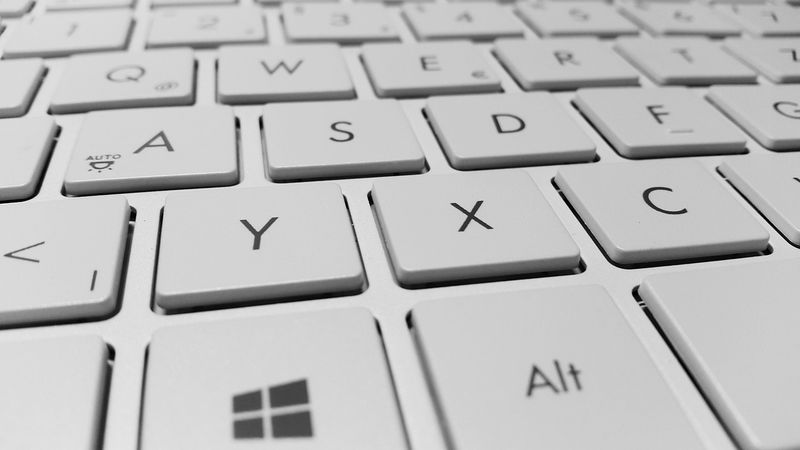
Tangerang, Kartunet - When we hear the word “keyboard,” our thoughts are invariably linked to a computer, as a keyboard is a board consisting of keys used to type sentences and other special symbols on a computer. In Indonesian, "keyboard" means "papan tombol jari" (finger key board) or "papan tombol" (key board). A keyboard contains letter keys A-Z, a-z, numbers 0-9, and special keys and characters such as: ` ~ @ # $ % ^ & * ( ) _ -+= < >/,.?: ; “ ‘ \ | as well as other special keys, totaling 104 keys. In contrast, a typewriter has 52 keys. Keyboards are generally rectangular, but today, keyboard models are highly varied. In the past, many people used typewriters, both manual and electric. Well, keyboards share similarities in form and function with typewriters. The difference lies in the output or display. When using a typewriter, we cannot erase or undo anything that has been typed, and every letter or symbol we type is immediately printed on paper. This is not the case with a keyboard. What we type, its results or output, can first be seen on the monitor screen, and then we can modify or make changes to the font, correct typing errors, and so on. Like a “mouse,” a keyboard is connected to a computer with a cable attached to the keyboard. The end of this cable is inserted into a port on the computer's CPU. Currently, several types of keyboards are commonly used, including:

- Serial Keyboard Uses a DIN 5 male connector and is typically used with AT-type computers.
- PS/2 Keyboard Commonly used with ATX computers and is currently the most widely used. Installing this type of keyboard must be done carefully, as its port is the same as the mouse port.
- Wireless Keyboard As its name suggests, this type of keyboard does not use a cable to connect to the computer. The connection types used are infrared, Wi-Fi, or Bluetooth. To connect the keyboard to the computer, a transmitter and receiver unit are required. The transmitter unit is usually found on the keyboard itself, while the receiver is typically plugged into a USB or serial port on the CPU.
- USB Keyboard Many modern computers now use USB connectors, which ensure faster data transfer.
Keyboard Key Structure
From the perspective of the keys used, keyboards have not evolved very rapidly since their initial invention. What has occurred is merely the addition of several auxiliary keys that further speed up the opening of program applications. Generally, the key structure on a keyboard is divided into 4 categories:
- Typing Keys
Typing keys are a part of the keyboard that contains letters, numbers, and punctuation marks. Generally, there are two types of letter layouts on a keyboard: QWERTY and DVORAK. However, the QWERTY layout remains the most widely used to this day. - Numeric Keypad
The numeric keypad is a special section of the keyboard that contains numbers and is highly functional for entering numerical data and performing calculations. Its number structure resembles that of a calculator and other calculating devices. - Function Keys
In 1986, IBM added several function keys to the standard keyboard. These keys can be used for special commands included in operating systems and applications. - Control Keys
These keys provide control over the cursor and screen. Keys included in this category are the 4 arrow keys located between the typing keys and the numeric keypad, home, end, insert, delete, page up, page down, control (Ctrl), alternate (Alt), and escape (Esc).
Overview of Keyboard Parts
Some key functions on a keyboard can be explained as follows:
- The ALT key, usually located to the left and right of the elongated spacebar, functions when paired with another key, such as F4, which is useful for Shutting Down or closing an active Windows Program.
- The CTRL key, typically found at the bottom left and right ends of the typing key cluster, functions when paired with other keys, such as the C key (also known as CTRL+C), which is useful for copying a selected object to the clipboard, to be pasted into a designated work area using CTRL+V.
- The F1-F12 keys, located at the very top of the keyboard in rows of four, are function keys whose use is adapted to the operating system or application. For example, F1 is usually used to display the Help menu, which provides explanations about the running application.
- The Esc (Escape) key, usually located in the top-left corner, somewhat separated, has the same function as the CANCEL option, which is to cancel one stage of a task.
- The Enter key, typically the largest key on the right side of the smaller keys, often shaped like a reversed L, has the same function as the OK button, which is to confirm that the operation performed is correct and complete. Enter can also mean inserting a blank line or a new line during text input.
- The Tab key (tabulation), usually located to the left of the Q key, in a dialog window, pressing the Tab key means moving to the next field, input area, or option. During typing, Tab means jumping to the nearest tab-stop.
- The Cursor keys, four keys with arrow symbols (up, left, down, and right), move the character pointer (cursor) according to the direction of the respective arrow.
- The Backspace key, usually located in the top-right corner of the typing keys, pressing Backspace will delete the character (letter) to the left of the cursor.
- The Del (Delete) key, usually located in the bottom-left corner of the six navigation keys above the arrow keys, pressing Delete will delete the character (letter) to the right of or at the cursor's position.
- The Home key, also located above the arrow keys, when pressed, moves the cursor to the beginning of the line where the cursor is located.
- The End key, located below the Home key, when pressed, moves the cursor to the end of the line where the cursor is located.
- The Page Up key, located to the right of the Home key, when pressed (PgUp), moves the cursor up by one screen from its current position.
- The Page Down key, located to the right of the End key, when pressed (PgDn), moves the cursor down by one screen from its current position.
The above is a general overview of the keyboard, which will be the most frequently touched part of a computer by visually impaired users. Continue practicing to explore all parts of the keyboard to become familiar with it. Especially on laptops, the key layout on keyboards generally varies depending on the brand of the laptop. So, make it a habit to explore all parts of the keyboard before starting work on a newly used computer or laptop.